 EN
EN ΕΛ
ΕΛGETTING STARTED / VICE
A Commodore 128.
On your computer.
You can try AIS4CBM using VICE, the Commodore emulator. Configure x128 with 64 KiB of VDC video RAM and at least 512 KiB of REU memory, then connect its serial interface to the AIS feed.
The screenshots below show the GTK3 version of VICE on Windows. Select any image to see its settings at full size.
01 / THE EMULATOR
Get VICE.
Download VICE for your operating system from the official VICE website. On Windows, choose the GTK3 package from the official Windows downloads to follow the interface shown here.
Extract the Windows archive, open its bin folder, and run x128.exe, the Commodore 128 emulator. AIS4CBM uses the C128’s 80-column VDC display.
Open VICE’s settings dialog to configure VDC video memory, serial input and REU memory below.
02 / DISPLAY MEMORY
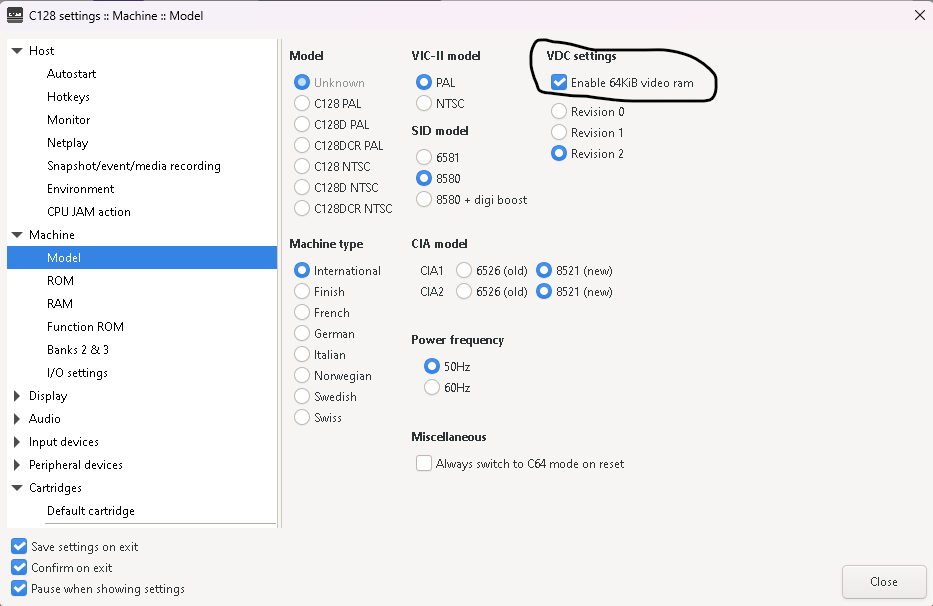
Enable 64 KiB of VDC video RAM.
Machine Model VDC settings
AIS4CBM’s BASIC 8 graphics viewer requires 64 KiB of VDC video RAM for its display screens. Configure this before starting the application.
- Open Machine → Model.
- Under VDC settings, check Enable 64KiB video ram, as circled in the screenshot.
VDC video RAM and REU memory are separate. Set both: 64 KiB for the VDC and at least 512 KiB for the REU.
03 / THE LIVE FEED
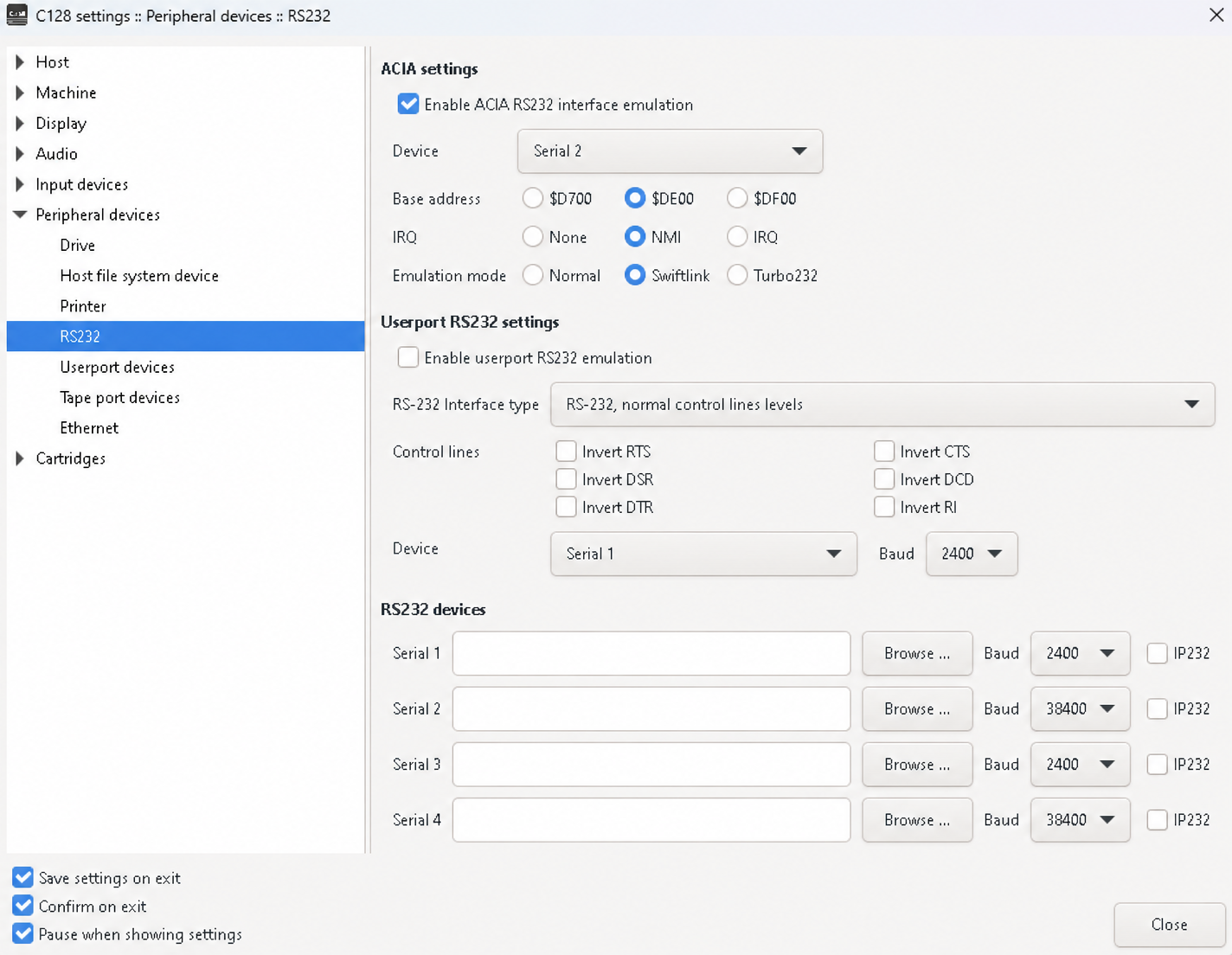
Configure serial input.
Peripheral devices RS232
Contact us for a server address and connection details. Then, under RS232 devices, enter these values in the Serial 2 row:
| Device address | The server address and port provided to you (host:port) |
|---|---|
| Baud | 38400 |
| IP232 | Unchecked |
Then set ACIA settings at the top of the same page:
| ACIA RS232 emulation | Enabled |
|---|---|
| Device | Serial 2 |
| Base address | $DE00 |
| IRQ | NMI |
| Emulation mode | Swiftlink |
Leave userport RS232 emulation unchecked. The other Serial rows can stay as they are.
Use the same device in both places: the feed address goes in Serial 2, and ACIA’s Device selection must also be Serial 2.
04 / VESSELS AND GRAPHICS BUFFERS
Enable the REU.
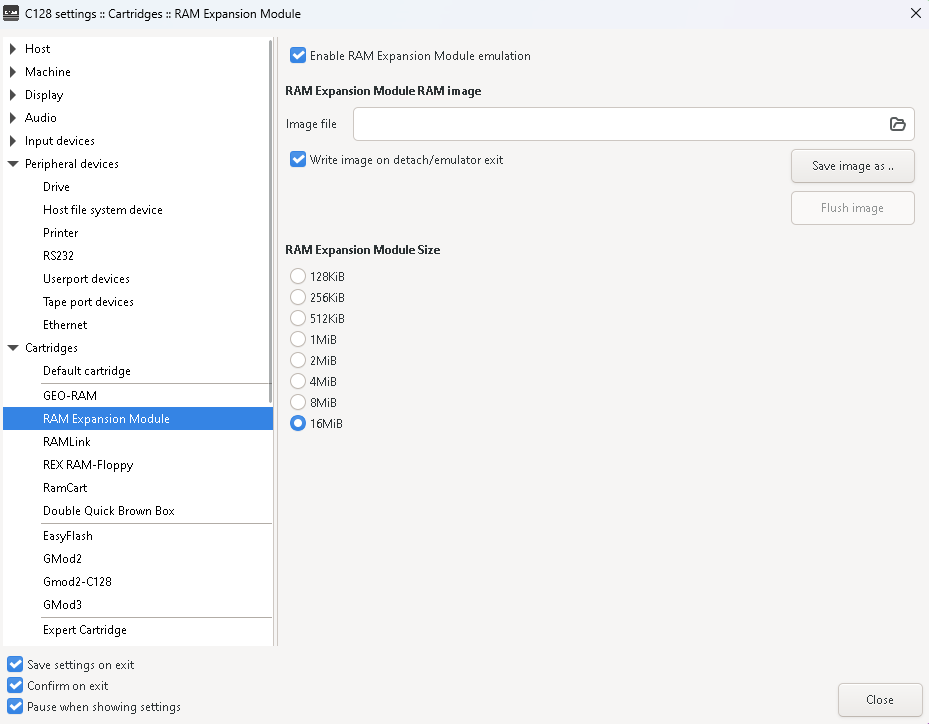
Cartridges RAM Expansion Module
The RAM Expansion Unit holds AIS vessel data and the BASIC 8 buffers used for maps, fonts, brushes and saved graphics. At least 512 KiB is required for both parts of the application. Configure it before starting AIS4CBM.
- Check Enable RAM Expansion Module emulation.
- Under RAM Expansion Module Size, select 512 KiB or a larger size.
- Leave the Image file field blank, as shown.
Minimum requirement: 512 KiB. The screenshot shows a larger 16 MiB configuration; 512 KiB is sufficient for the current build. The 128 and 256 KiB options are too small.
On a real C128, use a physical 512 KiB or larger REU, or enable REU emulation on an Ultimate-II+. The separate 64 KiB VDC requirement still applies. See the real-hardware options and photos, or check your equipment with the hardware wizard.
05 / READY TO RUN
Start AIS4CBM.
Enable Save settings on exit to keep this configuration, then close the settings dialog. If Pause when showing settings is checked, closing the dialog lets the emulator resume.
You will also need the current AIS4CBM disk image. The source repository contains the build instructions; the build produces out/aiscbm.d64.
The current disk build includes the BASIC 8 runtime used by the graphics viewer. Read why we use BASIC 8 and where to find its original disks.
- Attach
aiscbm.d64to VICE’s drive 8. - At the C128 BASIC prompt, enter these commands, pressing Return after each:
DLOAD "BOOT RTL"
RUN- Select the text or graphics front end. For graphics, follow the prompts for the data drive, optional logging and map.
- Use Alt + C in AIS4CBM to connect. Alt + D disconnects.
Run VICE at normal speed, with warp mode off, while following live traffic.
Further reference: VICE settings and RS232 manual. This setup guide uses project-supplied screenshots from September 2026.